How to Create an OMR Answer Sheet in Minutes (PDF & Word)
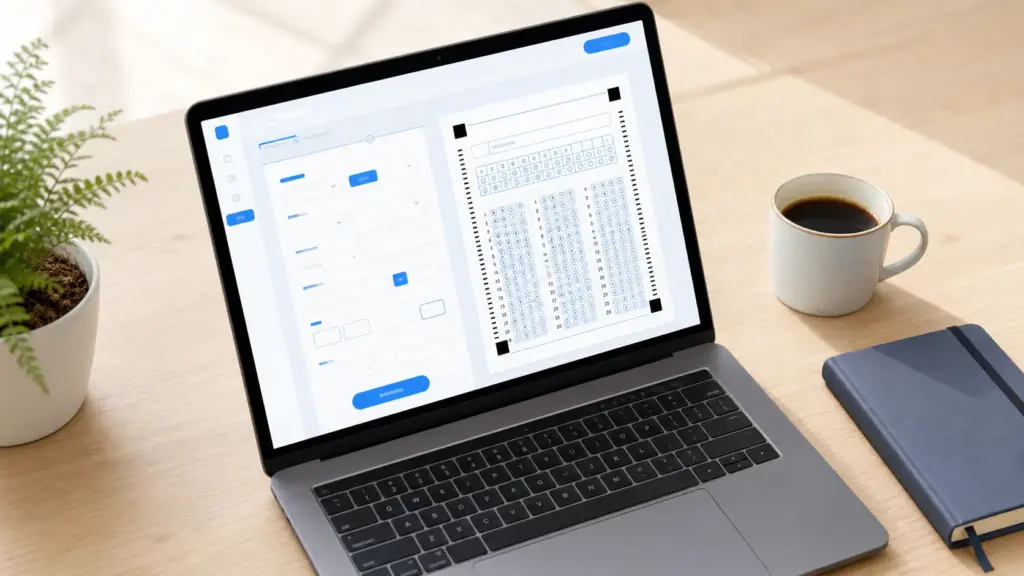
Already know what an OMR sheet is and just need one? This is the fastest path: a six-step walkthrough for generating a print-ready OMR answer sheet — as a PDF or Word file — using our free online generator. No design software, no print shop, no waiting.
New to OMR sheets in general? Start with What Is an OMR Sheet? Running this for an entire school or coaching institute and want the full toolkit — checking, scanning, templates? Read our complete OMR solution for schools.
Generating OMR answer sheets used to mean buying dedicated software or paying a print shop to typeset one for you. Now you can design one in your browser and download it as a PDF or Word file in under a minute — free, with no account required to get started.
Step 1: Open the Generator
Go to the Generate OMR Sheet page. You’ll see a simple form with sensible defaults already filled in, so you can preview a working sheet immediately and adjust from there rather than starting from a blank form.
Step 2: Set the Basics
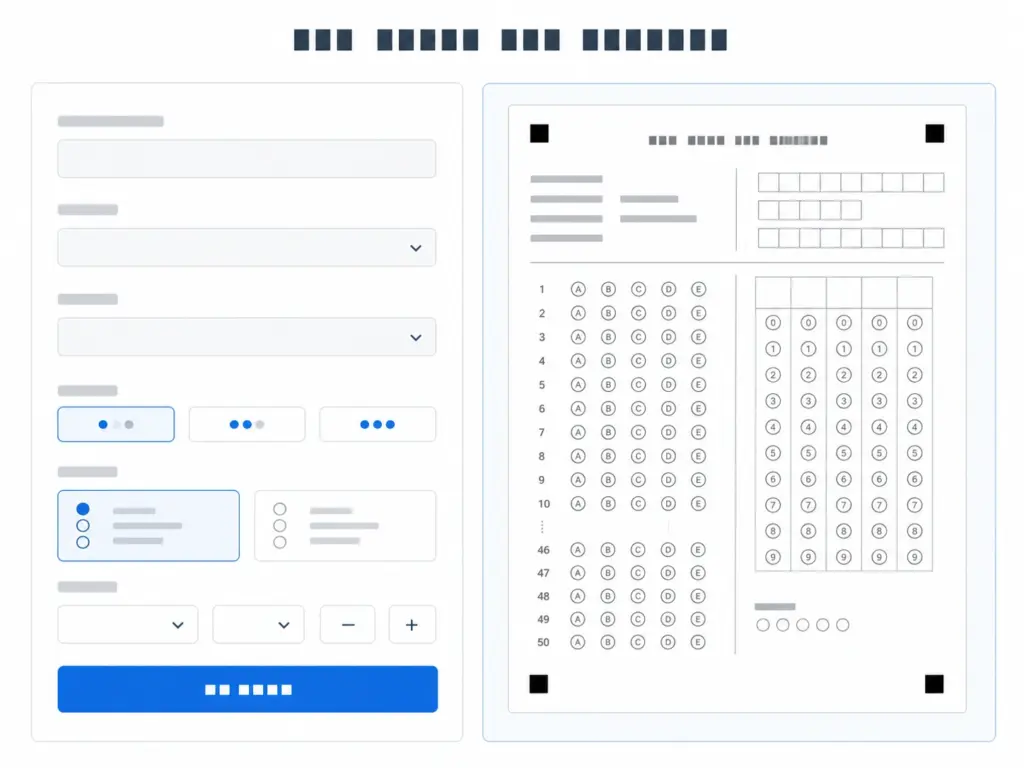
Enter your institute or exam title and an optional subtitle, then choose your question count (anywhere from 10 to 500) and how many options each question should have (2 to 5, labeled A through E). These two settings alone determine most of the sheet’s layout, so get them right first before moving on to formatting extras.
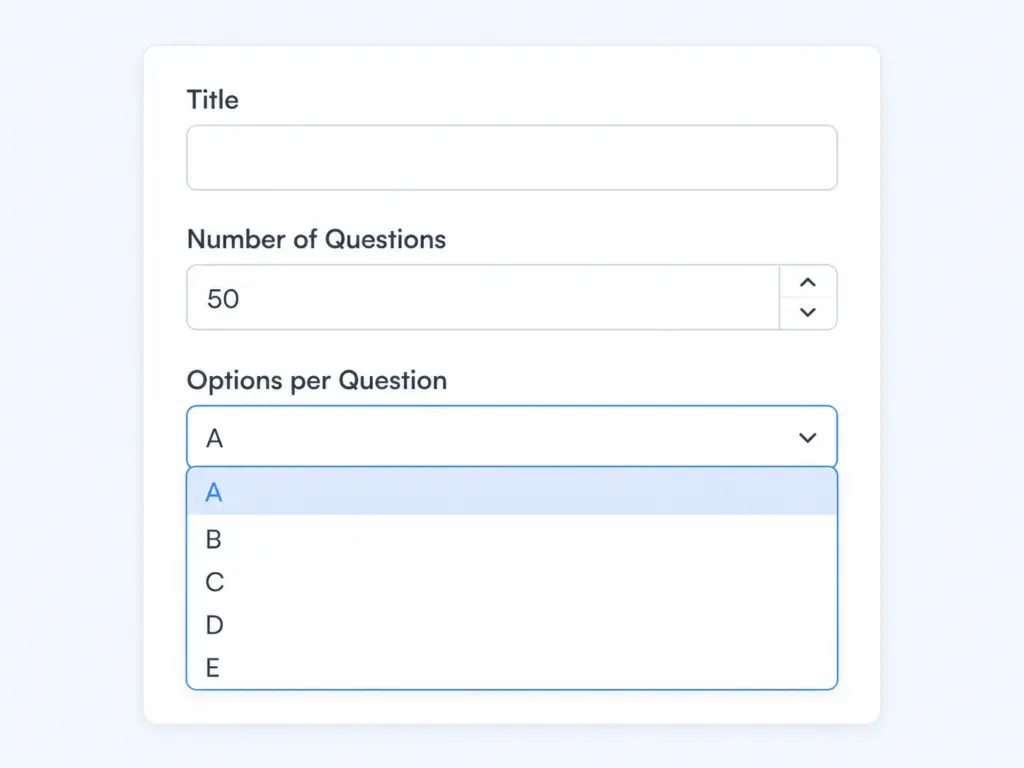
Step 3: Add Identity Fields and a Roll Grid
Select which identity fields you want on the sheet — name, roll number, class, date — and turn on a roll-number bubble grid if candidates need to be identified without relying on handwriting. This matters most for exams that will be scanned or auto-checked, since the grid lets the software pull the candidate’s ID directly from bubbles instead of trying to read handwriting.
Step 4: Brand It (Optional)
If you want, upload your institute’s logo and set up booklet sets (A, B, C) for exams that use multiple shuffled versions of the same question paper to reduce copying. The generator automatically adds corner registration marks to every version so each one still scans correctly regardless of which booklet set a candidate receives.
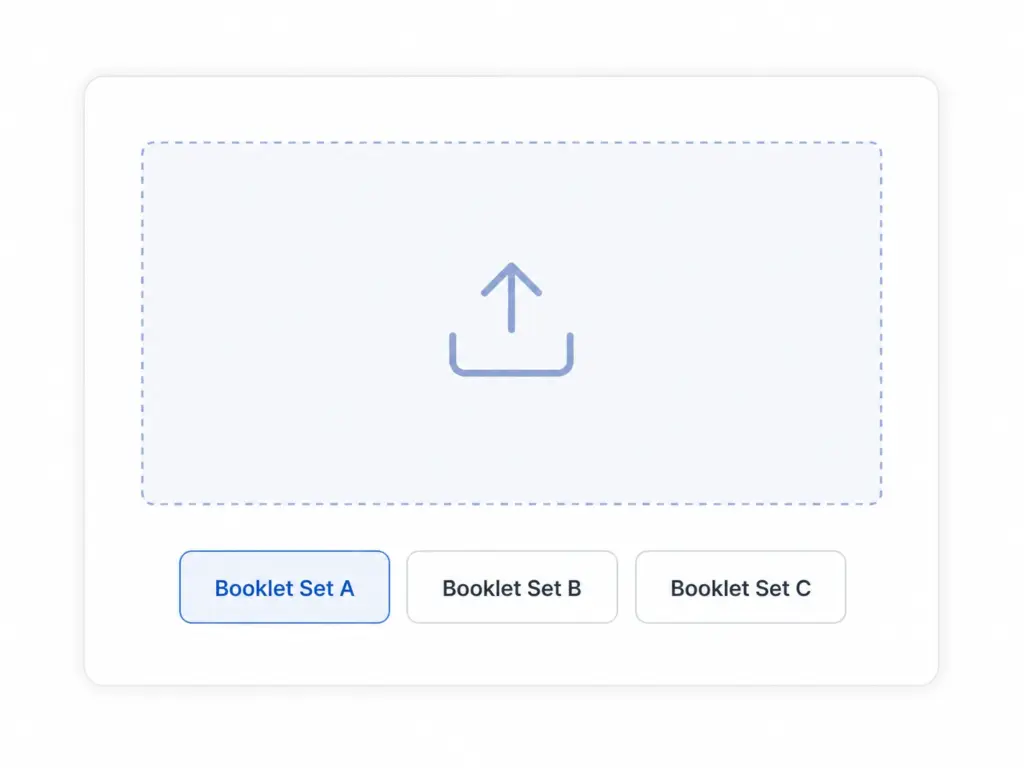
Step 5: Download PDF or Word
Once the preview looks right, export it as a print-ready A4 PDF, or download an editable Word document if you need to tweak wording or layout yourself afterward. Generate a separate answer-key version at the same time — you’ll need it later for grading, whether that’s manual checking or running sheets through the automatic checker.
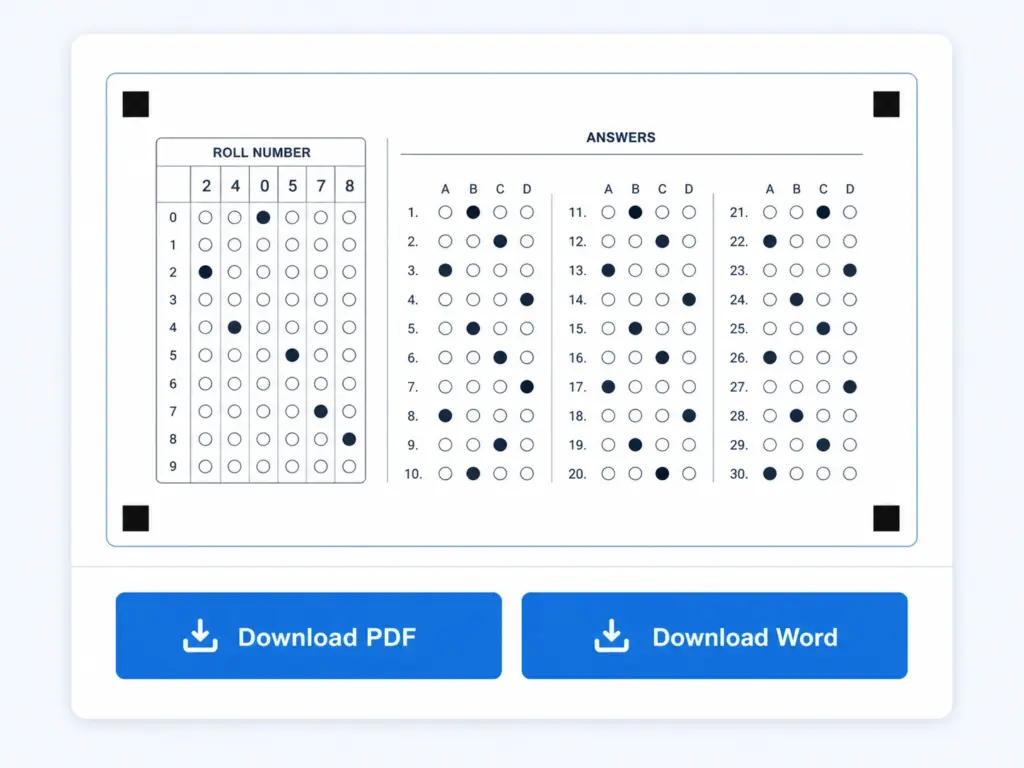
Step 6: Print and Test
Print on standard A4 paper, photocopy for the full batch of students, and run one filled sample through the answer checker or the scanning tool before the real exam day. A quick test copy catches alignment or printer-scaling issues while there’s still time to reprint, rather than discovering them after two hundred students have already filled sheets.
That’s it — a professional OMR sheet, free, in minutes.
Setting this up for a whole school or coaching centre rather than a single test? See the complete OMR solution for schools for checking, scanning, and template options at scale.
Frequently Asked Questions
-
What file formats can I download my OMR sheet in?
Both a print-ready PDF (A4, formatted for direct printing) and an editable Word (.doc) file if you need to adjust text or layout yourself before printing.
-
Is there a limit on how many questions I can add?
The generator supports anywhere from 10 to 500 questions in one go. For very high counts, the layout automatically flows across multiple pages so nothing gets cut off.
-
Do I need to create an account to generate a sheet?
No — you can generate and download a standard OMR sheet without signing up. An account is only needed for extras like saved templates, grading history, and higher usage limits.
-
Can I add my school or institute’s logo to the sheet?
Yes, Step 4 lets you upload a logo, and it will appear on the generated PDF and Word versions automatically.
-
What’s the difference between this and just downloading a template?
A template is a fixed, pre-made layout for a common size (like 50 or 100 questions). The generator builds a custom sheet to your exact question count, options, and branding — use whichever is faster for your situation. Browse ready-made options in our OMR Sheet Templates guide.