OMR Sheet Templates: 50, 100 and 200 Question Formats Explained
Not every test needs the same sheet. Here’s how the common OMR templates differ and when to use each. With our generator you can produce any of them instantly.
50-question sheet
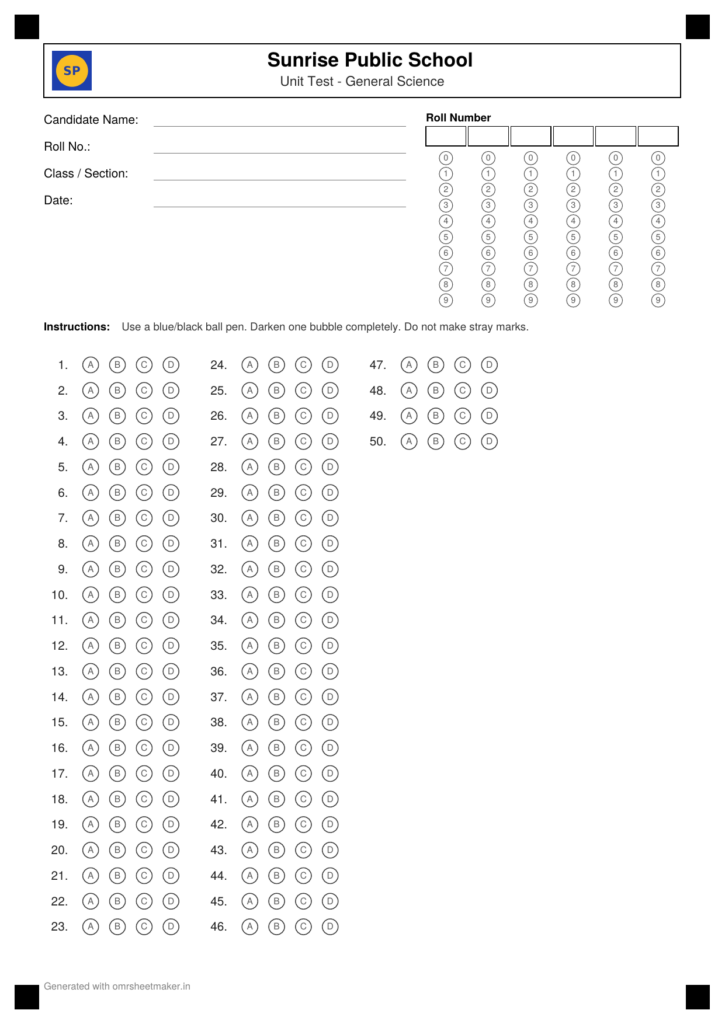
Perfect for class unit tests and short quizzes. Four options (A–D) fit comfortably in two or three columns on one page, with room for a name and roll grid. Make a 50-question sheet.
100-question sheet
The workhorse for chapter tests and weekly mock tests. A 100-question layout fits on a single A4 page in multiple columns. Add a roll-number grid for faster scanning.
200-question sheet
Used for full-length practice exams and competitive test simulations. With 200 questions you’ll typically use five options and a tighter, multi-column layout that flows onto a second page automatically.
Choosing options (A–D vs A–E)
Most school tests use four options; many entrance exams use four as well, while some aptitude tests use five. Match your sheet to your question paper so the bubbles line up with your key.
Matching the Template to Your Exam Type
The right question count depends less on personal preference and more on what the test is standing in for. A 50-question sheet suits weekly class tests, unit tests and quick assessments where you need a result fast and don’t need deep topic coverage. A 100-question sheet is the standard for chapter-end tests, monthly mock exams, and is also close to the format used by several state-level entrance screenings — it’s detailed enough to reveal real weak spots without taking the whole day to grade. A 200-question sheet belongs to full-length simulations: coaching institute finals, and practice runs for competitive exams where stamina and pacing matter as much as accuracy.
If you’re prepping students for a specific national exam, it’s often faster to start from a purpose-built preset than to configure question counts by hand. OMR Sheet Maker’s template gallery includes ready presets for NEET (180 questions), JEE (90 questions), SSC (100 questions) and UPSC (100 questions), alongside the classic 50/100/200 general-purpose sizes — pick the one closest to your target exam and adjust from there.
Printing and Paper Setup Tips
A perfectly designed template can still fail to scan well if it’s printed incorrectly, so a few printing habits are worth building into your workflow. Always print at 100% scale — never “fit to page” or “shrink to fit,” since even a small scale change shifts every bubble’s position relative to where the scanner expects it. Use the margins the generator produces rather than adjusting them in your print dialog, for the same reason. Where possible, print on a laser printer rather than an inkjet — the sharper, more consistent toner edges make bubbles easier for both scanners and human graders to read cleanly, especially at smaller bubble sizes on a 200-question sheet.
For large batches, print one master copy and photocopy the rest rather than reprinting individually — it’s faster and keeps every sheet visually identical. Before committing to a full print run of a few hundred sheets, it’s worth printing and testing just one copy through your checking process first, whether that’s manual entry or Scan & Grade, to catch any printer-specific alignment issues while it’s still cheap to fix.
Customising Templates: Logos, Booklet Sets and Reusable Presets
Beyond question count and option letters, a few features make templates fit your institute rather than the other way around. You can upload your school or coaching institute’s logo, which prints in the sheet header alongside the test name — useful for anything students might keep as a record, or that a parent might see. For larger exams where you want to discourage copying, booklet sets generate multiple shuffled versions (Set A, B, C, D…) of the same question paper in one batch, each with its own matching answer key, so neighbouring students don’t have matching question orders.
Once you’ve configured a layout you’re happy with — question count, options, logo, marking scheme — you don’t need to rebuild it next month. Saving it as a template from your dashboard turns the whole setup into a one-click regeneration, which matters most for institutes running the same test structure (say, a weekly unit test) on a recurring schedule. Between presets for major exams and your own saved templates, most institutes end up rarely touching the question-count field by hand after the first setup.
One tool, every format
Rather than hunting for fixed templates, set the exact question count and options you need and download a clean sheet. You can also save your settings as a reusable template so next month’s test is one click away.
Frequently Asked Questions:
-
Can I generate a template with a question count other than 50, 100 or 200?
Yes, those three are the common presets, but the generator accepts any question count and number of options you need — set the exact numbers and download a custom sheet.
-
Are exam-specific templates like NEET or JEE available directly?
Yes, the template gallery includes ready-sized presets for NEET (180Q), JEE (90Q), SSC (100Q) and UPSC (100Q), so you can start from a layout close to the real exam rather than building one from scratch.
-
Can I add my school or institute’s logo to the sheet?
Yes, logo upload is supported and the logo prints in the sheet header alongside your test name and details.
-
What is a booklet set and when should I use one?
A booklet set is a batch of shuffled question paper versions (Set A, B, C and so on) generated together, each with its own answer key — useful for larger exams where you want to reduce copying between neighbouring students.